
Few things interfere with work and play like a slow computer. But why is your computer running slow and what can you do about it?
Everyone has been there. After a long day of browsing, streaming and switching between multiple applications, even the most loyal computer may exhibit symptoms of fatigue: the fan blows nonstop, applications start to freeze or crash, and everything from loading websites to saving documents slows to an excruciating crawl.

1. The RAM Is Running Out
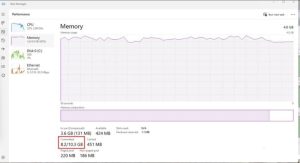
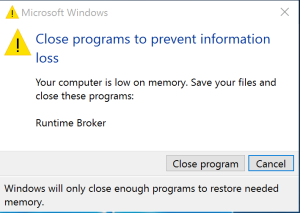
- Close Unnecessary Applications: Use the Task Manager (Ctrl+Alt+Del) on Windows, Activity Monitor on Mac, or Task Manager on Chromebook to identify and stop resource-intensive programs [this user query].
- Manage Background Processes: Prevent unnecessary programs from running at startup to free up resources [this user query].
- Reduce Browser Tabs: Each open browser tab consumes RAM; closing unused tabs can significantly boost speed [this user query].
- Upgrade Hardware: If the device is over four years old or has limited RAM (e.g., 4GB), upgrading is often necessary to handle modern, memory-intensive software [this user query].
- Speed: It provides instant data access to the CPU, preventing the "thrashing" that happens when a computer uses slow virtual memory.
- Multitasking: Allows multiple applications and browser tabs to run simultaneously without performance dips.
- Smooth Performance: Essential for gaming, photo editing, and keeping the system responsive.
2. The Hard Drive Is Maxed Out
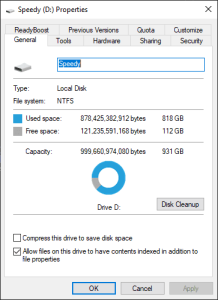
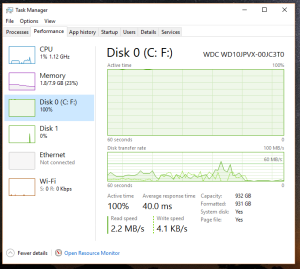
A maxed-out hard drive (100% usage) causes severe system slowdowns, usually due to low storage space, background processes, or system errors. Immediate fixes include restarting the PC, running Disk Cleanup, disabling SysMain (formerly Superfetch), and checking for Windows updates. For long-term relief, delete large personal files or move them to external storage.
- Run Disk Cleanup: Search for "Disk Cleanup" in the Windows search bar, select your C: drive, and remove unnecessary files like temporary internet files and Windows update cleanup.
- Identify Resource Hogs: Open Task Manager (
Ctrl+Alt+Del) to see which programs are using the most disk power. If a process exceeds 1-2 MB/s, it may be causing the bottleneck. - Restart the Computer: A simple reboot can fix issues where temporary files or stuck processes are causing high usage.
- Disable SysMain (Superfetch): In some cases, the SysMain service causes high disk usage. You can disable this in the Services app.
- Check for Windows Updates: Pending updates can cause high disk usage. Go to Settings > Update & Security to ensure your system is fully updated.
- Check Disk Health: Use tools like CrystalDiskInfo to check the S.M.A.R.T. data of your drive to ensure it is not failing.
- Scan for Malware: Run a, antivirus scan, as malicious software can cause high disk usage.
- Upgrade to an SSD: If you are still using a mechanical hard drive (HDD), upgrading to a Solid State Drive (SSD) is the best solution for long-term performance.
- Clear temporary files
- Restart your computer
- Check for Windows updates
- Disable Windows Search Indexing: If search indexing is corrupted, it can cause high usage. Rebuilding the search index may help.
- Check Disk for Errors: Use the
chkdsk /rcommand in Command Prompt to scan for and fix bad sectors. - Update Device Drivers: Ensure all drivers, especially storage drivers, are updated.
- Disable Background Apps: Turn off background apps that are not necessary.
3. The Software Is Outdated
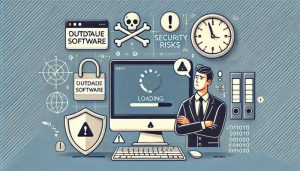
Outdated software refers to using older versions of applications or operating systems that are no longer supported, leading to critical security vulnerabilities, sluggish performance, and compatibility issues. It significantly increases the risk of malware infections, data breaches, and system crashes. Common signs include frequent errors, slow loading times, and lack of support for new features.
Key Risks and Consequences:
- Security Vulnerabilities: Unpatched software is a prime target for cyberattacks, as hackers exploit known gaps that new updates would have fixed.
- Performance Issues: As software ages, it becomes less compatible with modern hardware, resulting in crashes, freezes, and sluggish performance.
- Lack of Support: Older, unmaintained versions may stop working entirely with new technologies or services.
- Loss of Productivity: Constant errors and slow performance hinder daily tasks and business operations.
Signs of Outdated Software:
- Performance Lags: Applications take a long time to load or freeze frequently.
- Frequent Crashes: Software quits unexpectedly or fails to start.
- Incompatibility: New tools or hardware do not work with the old system.
- No Updates: The software has not received updates in over six months.
Solutions to Fix Outdated Software:
- Run Updates: Immediately update operating systems and applications through official channels, such as the Windows update command prompt.
- Enable Automatic Updates: Configure software to update automatically to avoid forgetting in the future.
- Replace Obsolete Software: If software is no longer supported or maintained, replace it with a modern, supported alternative.
- Clear Cache: For mobile devices, clearing the cache in the app settings can sometimes resolve issues with older apps.
4. The Computer Has Viruses or Malware
If your computer is infected with viruses or malware, it will likely show symptoms such as extreme slowness, constant pop-up ads, browser hijacking, missing files, or unexpected crashes. Immediately run a full system scan using Windows Security or reputable malware removal software like Malwarebytes, and consider removing unknown startup programs.
Signs of Infection
- Performance Issues: Slow speeds, frequent freezing, or the "Blue Screen of Death" (BSOD).
- Unwanted Behavior: Excessive pop-up ads, homepage changes, or browser redirection.
- Suspicious Activity: Unknown programs appearing, high internet usage, or security software disabled.
- Data Issues: Missing or corrupted files, or strange emails sent from your account.
Steps to Remove Malware/Viruses
- Run a Scan: Use Windows Defender or Malwarebytes to perform a "Quick Scan" first, followed by a "Full Scan".
- Use Safe Mode: If the infection persists, restart your computer in Safe Mode, which prevents malicious software from launching, and try to run the scanner again.
- Check Startup Apps: Open Task Manager (Ctrl+Shift+Esc), go to the Startup tab, and disable any unrecognized applications.
- Remove Browser Extensions: Check your browser for unfamiliar extensions and remove them, then reset your browser settings.
- Offline Scan: Utilize Microsoft Defender’s offline scan option, which restarts the computer to scan for stubborn malware before Windows loads.
If these methods fail, the most secure solution is to back up your files and perform a clean reinstallation of the operating system.
5. The Computer Is Too Hot
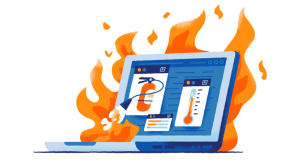
An overheating computer is usually caused by dust buildup, blocked vents, or excessive resource usage, which can lead to performance issues or hardware failure. Key fixes include clearing air vents with compressed air, placing the unit on a hard, flat surface, closing resource-heavy apps, and using cooling pads for laptops.
Immediate & Preventative Measures for a Hot Computer:
- Clean Internal Vents and Fans: Dust restricts airflow. Use compressed air to clean vents, fans, and heatsinks on desktops and laptops.
- Improve Airflow: Place laptops on hard, flat surfaces (not beds or sofas) to keep intake vents unobstructed.
- Reduce Workload: Use Task Manager (Ctrl+Shift+Esc) to identify and close resource-intensive applications.
- Check Fan Functionality: Ensure all cooling fans are spinning; replace broken or noisy fans.
- External Cooling: Use a laptop cooling pad to supplement ventilation.
- Reapply Thermal Paste: If the computer is old, the thermal paste between the CPU/GPU and heat sink may have dried out and need replacement.
- Environment Check: Keep the computer out of direct sunlight and in a cooler room.
For advanced management, monitor system temperatures with software like Core Temp or SpeedFan to prevent overheating.